Using dynamic sources
Easily connect custom metafields and metaobjects to sections and blocks across your store to display dynamic, personalized content using the latest theme features.
Last updated About 1 year ago
Overview
Dynamic sources let you display flexible, custom information throughout your store by connecting metafields and metaobjects to different sections and blocks. Our modern themes fully support dynamic sources, giving you even more control to personalize your store’s content.
💡 Tip: With our themes, you’ll always be able to use the most advanced methods to connect and display custom data in your storefront.
How metafields and metaobjects work with dynamic sources
Metafields and metaobjects provide a way to present unique information for each product, collection, page, blog, or blog post. You can add and manage these directly in the theme editor, making it simple to connect custom data wherever you need it.
If you want to display the burn time for every candle you sell, use the following steps:
Set up a product metafield for burn time.
Add a dedicated block to your product template.
Connect the block to your product metafield.
To display information that applies to an entire collection—such as a page listing all burn times—follow these steps:
Create a collection metafield.
Add a block to your collection template.
Link the block to the new metafield.
💡 Tip: Always set up all necessary metafields or metaobjects before connecting dynamic sources in your theme.
Requirements for using dynamic sources
Dynamic sources require a theme that supports the latest template features. All of our themes are always compatible with the latest technology.
Please note:
Not every section or block will support dynamic sources.
Check your theme documentation for details about which sections and blocks support dynamic sources.
🚧 Caution: If your theme editor doesn’t support displaying the custom data you want, you may need to update your theme, modify the theme code directly, or consult a theme expert.
Connecting dynamic sources
It’s easy to add dynamic sources to blocks or settings in your theme:
Go to your admin and navigate to Online Store > Themes.
Find your theme and click Customize.
Use the dropdown to choose the template you want to edit.
Click into an existing section or select + Add section.
Select the dynamic source button, then choose the dynamic source you want to connect.
Click Save.
Understanding the dynamic source selector
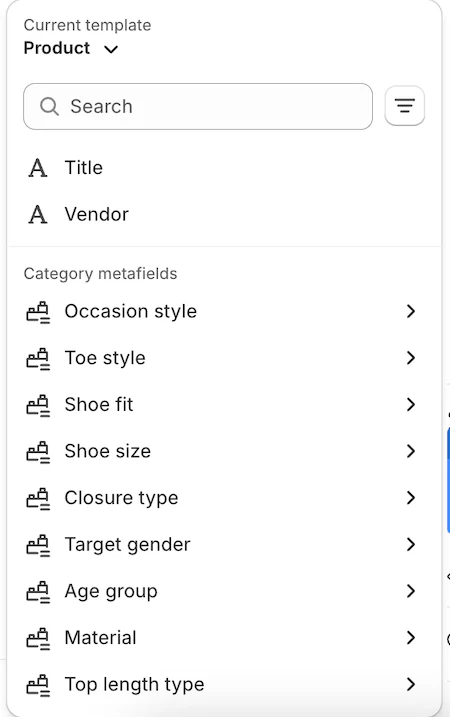
The dynamic source selector makes connecting your custom fields simple and efficient in the store editor.
Key features include:
Ability to reference multiple resource types
When a block is connected to both a product and a page, you can choose which resource’s metafields to display from the dropdown at the top of the selector.
Search and filter options
Quickly find the metafield or metaobject you need using built-in search and filter tools.
Selection of category metafields
Assigning a category to a product will reveal additional category metafields.
These allow you to connect to relevant fields on the underlying metaobject.
📝 Note: You can use dynamic sources on products, collections, pages, blogs, and blog posts — giving you almost unlimited ways to display custom content in your store.
Was this helpful?
Still need help? Ask the team